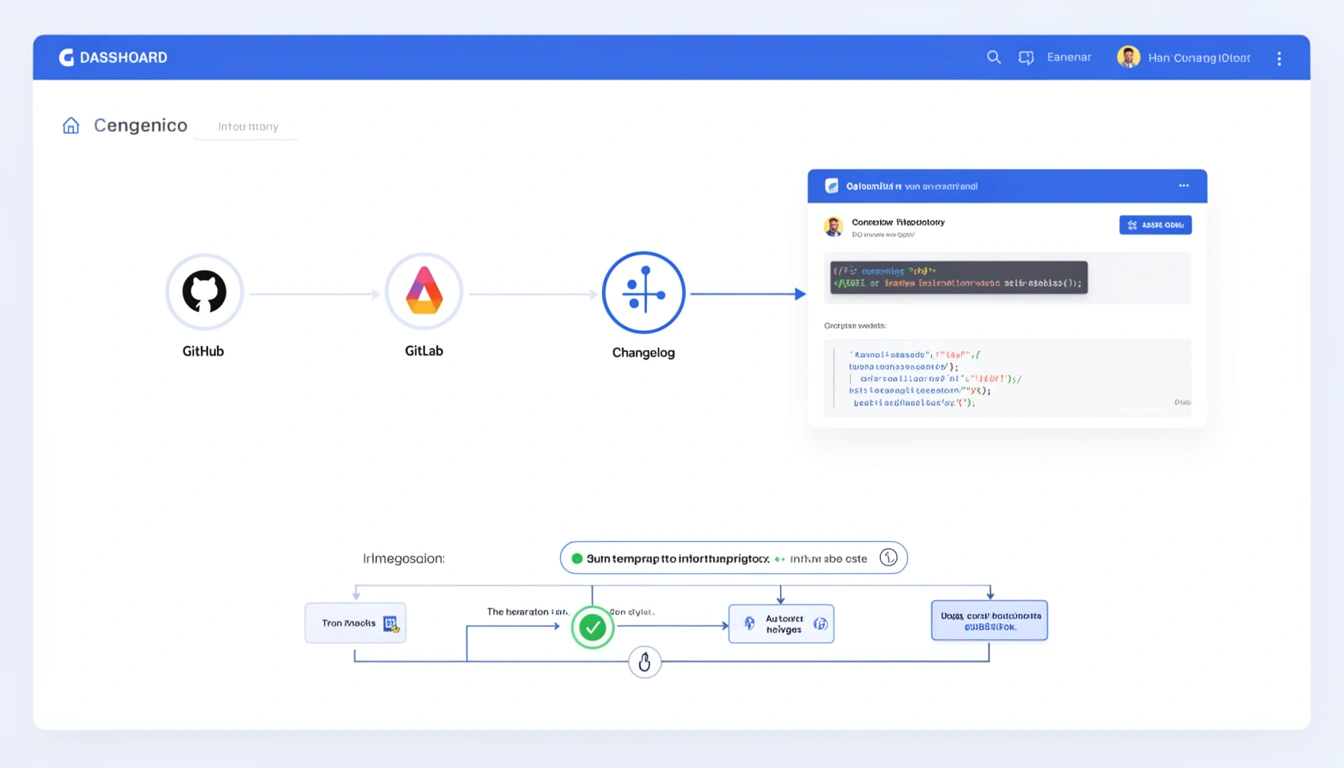
Keeping your users informed about product updates shouldn't drain your development resources. If you're building on Lovable or managing any modern web application, automating your changelog process can save hours while improving transparency and user trust.
This comprehensive guide walks you through integrating AutoLog into your application, from initial setup to advanced customization options that align with your brand and workflow.
Why Automate Your Changelog Process?
Before diving into the integration steps, it's worth understanding the compelling reasons to automate changelog creation. Manual changelog management often becomes an afterthought developers ship features but documentation lags behind, creating information gaps that frustrate users.
Automated changelogs solve this by:
Reducing documentation debt: Changes are captured automatically as they happen
Improving consistency: Every update follows the same format and structure
Boosting user engagement: Regular, timely updates keep users informed and invested
Freeing developer time: Teams focus on building features, not writing about them
As we explored in our article on how automatic changelogs boost user engagement, transparency in product development directly correlates with customer retention and satisfaction.
Prerequisites and Preparation
Before integrating AutoLog, ensure you have:
Access to your application's repository (GitHub, GitLab, or Bitbucket)
Admin permissions to install integrations
A clear branching strategy (main/production branch identified)
An AutoLog account (sign up at https://autologs.io/signup)
Take 10 minutes to audit your current commit message conventions. While AutoLog's AI can parse various formats, consistent commit messages yield better results. If your team uses conventional commits (feat:, fix:, docs:), you're already ahead of the curve.
/video
Step 1: Connect Your Repository
After logging into your AutoLog dashboard at https://autologs.io/login, navigate to the integrations panel.
For GitHub:
Click "Connect Repository" and select GitHub
Authorize AutoLog to access your repositories
Select the specific repository you want to track
Choose which branches to monitor (typically main, production, or release branches)
For GitLab and Bitbucket:
The process is similar, requiring OAuth authorization and repository selection. AutoLog supports all major git platforms with identical functionality.
Security-conscious teams will appreciate that AutoLog only requests read access to repository metadata and commits not your source code. For detailed information about data handling, review our security practices.
Step 2: Configure Changelog Settings
Once connected, customize how AutoLog interprets and presents your changes:
Change Categories
Map commit types to changelog categories. Standard categories include:
New Features: Major functionality additions
Improvements: Enhancements to existing features
Bug Fixes: Issue resolutions
Performance: Speed and efficiency updates
Security: Vulnerability patches and security enhancements
AI Tone and Style
Adjust AutoLog's AI writing style to match your brand voice:
Technical: Detailed, developer-focused descriptions
User-Friendly: Plain language for end-users
Concise: Brief summaries for frequent updates
Marketing: Benefit-focused messaging
Filtering Rules
Specify which changes appear in public changelogs. Common filters exclude:
Internal refactoring commits
Dependency updates (unless security-related)
Documentation-only changes
Testing and CI/CD modifications
Step 3: Embed the Changelog Widget
AutoLog provides multiple display options for your changelog:
Option A: Standalone Page
Create a dedicated /changelog route in your application. AutoLog generates an embeddable widget with a single line of code:
<script src="https://autologs.io/widget.js" data-project="your-project-id"></script>This approach works perfectly for SaaS applications where users expect a dedicated updates section. See a live example at AutoLog's own changelog.
Option B: In-App Notifications
Display changelog updates as in-app notifications when users log in. This method maximizes visibility for important updates without requiring users to navigate to a separate page.
Option C: API Integration
For teams needing maximum flexibility, AutoLog's REST API allows you to fetch changelog data and render it with your custom components. This is ideal for mobile apps or heavily customized interfaces.
Step 4: Customize Appearance and Branding
Make the changelog feel native to your application:
Color Scheme: Match your brand colors for backgrounds, text, and accent elements
Typography: Select fonts that align with your design system
Layout: Choose between timeline, card, or list views
Logo Placement: Add your company logo to the changelog header
The widget is fully responsive and accessible, meeting WCAG 2.1 AA standards out of the box.
Step 5: Set Up Release Triggers
Determine when AutoLog generates new changelog entries:
Automatic (Recommended)
AutoLog detects deployments and releases automatically when you:
Merge to your production branch
Create a new release tag
Deploy via supported CI/CD platforms
Manual
For teams wanting more control, manually trigger changelog generation from the dashboard after each deployment. This allows for review before publication.
Scheduled
Compile changes on a regular schedule (daily, weekly, bi-weekly) regardless of deployment frequency. This works well for teams shipping continuously throughout the day.
Step 6: Test Your Integration
Before going live, validate everything works correctly:
Make a test commit: Push a change with a clear commit message
Trigger a release: Create a test deployment or manually trigger changelog generation
Review the output: Check that the AI-generated description accurately reflects your change
Test the display: Verify the changelog appears correctly in your app
Check notifications: If enabled, ensure email or in-app alerts function properly
Most issues stem from incorrect branch configuration or overly aggressive filtering rules. The AutoLog dashboard provides real-time logs showing which commits were processed and why some were excluded.
Advanced Configuration Options
Multi-Product Tracking
If you manage multiple products or services, create separate changelog streams within a single AutoLog account. Each product gets its own widget and customization settings.
Team Notifications
Configure Slack, Discord, or Microsoft Teams notifications so your team knows when changelogs are published. This keeps marketing, support, and sales teams aligned with product updates.
Custom Metadata
Attach additional information to changelog entries:
Related documentation links
Video demos or screenshots
Migration guides for breaking changes
Contributors and acknowledgments
Version Numbering
Choose between semantic versioning (1.2.3), date-based versioning (2026.03), or custom schemes. AutoLog auto-increments based on your preferred system.
Best Practices for Maximizing Value
Integration is just the beginning. To get the most from automated changelogs:
Write Better Commit Messages
While AutoLog's AI is sophisticated, clear input yields better output. Use descriptive commit messages that explain the "why" behind changes, not just the "what."
Categorize Strategically
Don't overwhelm users with every minor tweak. Save "New Features" for genuinely significant additions. Group small improvements into periodic summary entries.
Include Visuals
A screenshot or short video demonstrates new features far better than text alone. AutoLog supports embedded media in changelog entries.
Link to Documentation
When announcing complex features, link directly to help articles or tutorials. This reduces support burden and improves feature adoption.
Acknowledge Your Users
If a change resulted from user feedback, mention it! This shows you're listening and builds community engagement.
Monitoring and Iteration
After launching your automated changelog, track its impact:
Engagement metrics: How many users view your changelog? How long do they spend reading it?
Support ticket trends: Do you see fewer "what changed?" inquiries?
Feature adoption: Are new features being used more quickly when properly announced?
User feedback: Ask users if they find the changelog helpful
AutoLog provides built-in analytics showing view counts, popular entries, and user engagement patterns. Use this data to refine your approach over time.
Troubleshooting Common Issues
"Changes aren't appearing in the changelog"
Check that:
You're pushing to the correct monitored branch
Your commits aren't being filtered out by your rules
The integration has proper repository permissions
"AI descriptions are too technical/too simple"
Adjust the tone settings in your configuration. You can also provide example descriptions to guide the AI toward your preferred style.
"Widget isn't displaying correctly"
Verify there are no CSS conflicts with your application's styles. AutoLog uses scoped styles, but aggressive global CSS can sometimes interfere.
Scaling Your Changelog Strategy
As your product and team grow, your changelog process should evolve:
For Growing Teams
Implement changelog approval workflows where designated team members review AI-generated entries before publication. This ensures quality while maintaining automation benefits.
For Multiple Products
Create a unified changelog page showing updates across your entire product suite, with filters allowing users to view specific products.
For Enterprise Customers
Generate customer-specific changelogs that highlight features relevant to their subscription tier or use case. AutoLog supports segmentation based on custom tags.
Integration Success: Real-World Results
Teams implementing AutoLog typically see:
70% reduction in time spent on release documentation
40% increase in changelog engagement compared to manual updates
Faster feature adoption as users stay informed about new capabilities
Improved user trust through consistent communication
The key is treating your changelog as a product feature, not an administrative task. When users can easily track how your product evolves, they feel more invested in your success.
Moving Forward
Integrating AutoLog transforms changelog creation from a tedious chore into an automated asset that strengthens your user relationships. The initial setup takes less than an hour, but the ongoing benefits compound with every release.
Start with the basic integration, then gradually adopt advanced features as you discover what resonates with your audience. The goal isn't perfection from day one it's consistent, transparent communication that keeps users engaged and informed.
Ready to get started? Visit the features page to explore all capabilities, or jump straight to implementation with your free trial.
Your users deserve to know what you're building. Make it effortless.
Published with LeafPad